admin
Platform Features for Organization Admin Role
Comprehensive guide for organization administrators on managing teams, challenges, and organizational settings.
Inviting Members
Org Admins can streamline onboarding by inviting new members to join their organization using the Invite Members feature.
From the Top-Right Navigation Menu, follow these steps:
- Select Organization > Organization Settings.
- Navigate to the Teams Tab > Invite Members.
- Enter one or more email addresses in the provided field.
- Click Send Invites to notify the invitees.
Invitees will receive an email notification. Their status will update in the system once they accept the invitation and complete the signup process.
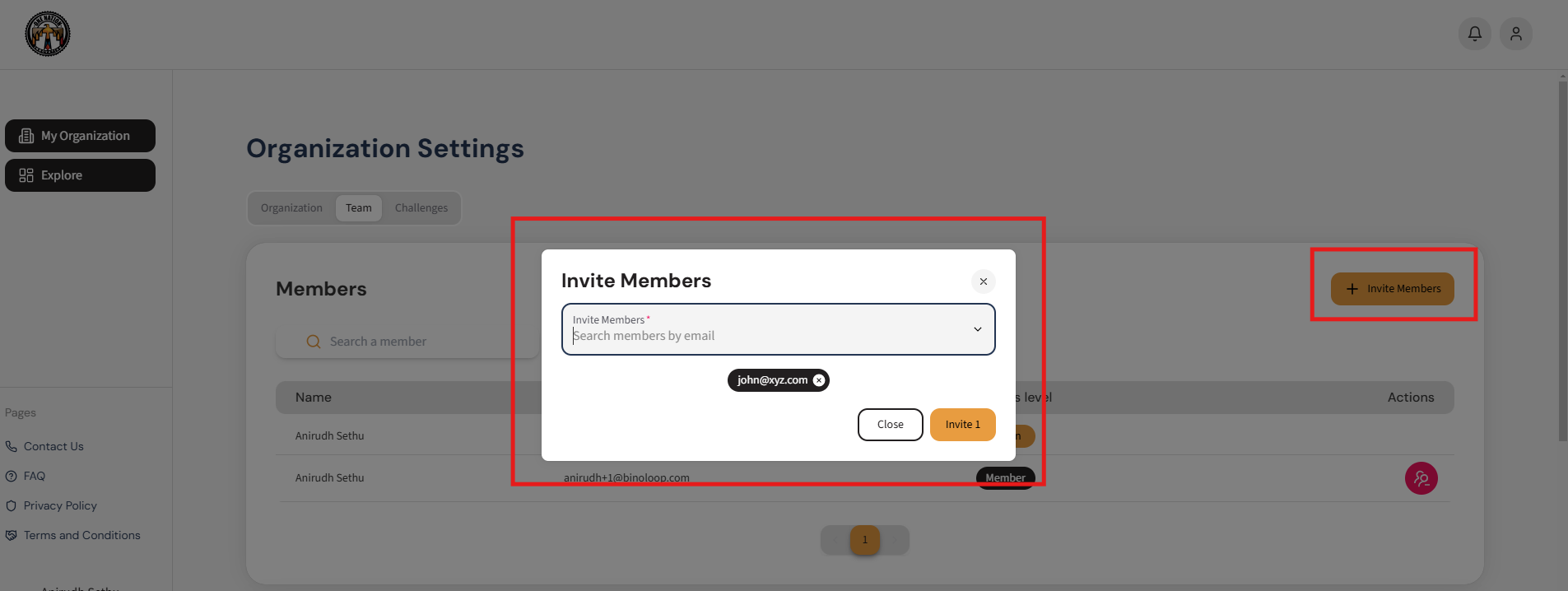 Figure 1: Admin inviting new members using the Invite Members feature. Watch video here
Removing Org Members
Org Admins can remove existing organization members to manage access and ensure appropriate team composition.
From the Top-Right Navigation Menu, follow these steps:
- Select Organization > Organization Settings.
- Navigate to the Teams Tab.
- Locate the member you wish to remove in the Members list.
- Click the Actions Icon next to the member's name.
- Select Remove Member to revoke their access.
Removed members will immediately lose access to the organization.
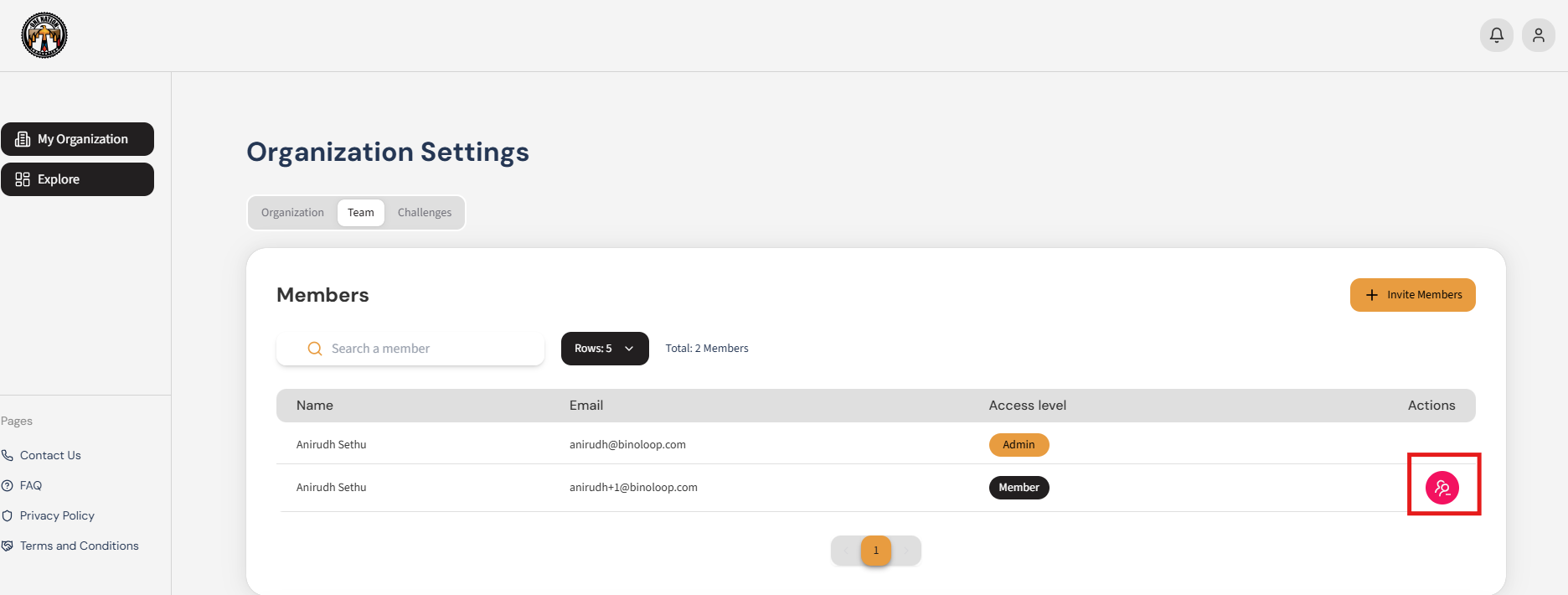 Figure 1: Admin removing an organization member in the Teams Tab.
Approving User Requests
Org Admins can review and manage pending requests from users seeking to join their organization.
From the Top-Right Navigation Menu, follow these steps:
- Select Organization > Organization Settings.
- Navigate to the Teams Tab > Requests Section.
- Review the applicant's details.
- Click Approve to grant access or Reject to deny the request.
Approved users will gain access to the organization's resources, while rejected requests will be removed from the list.
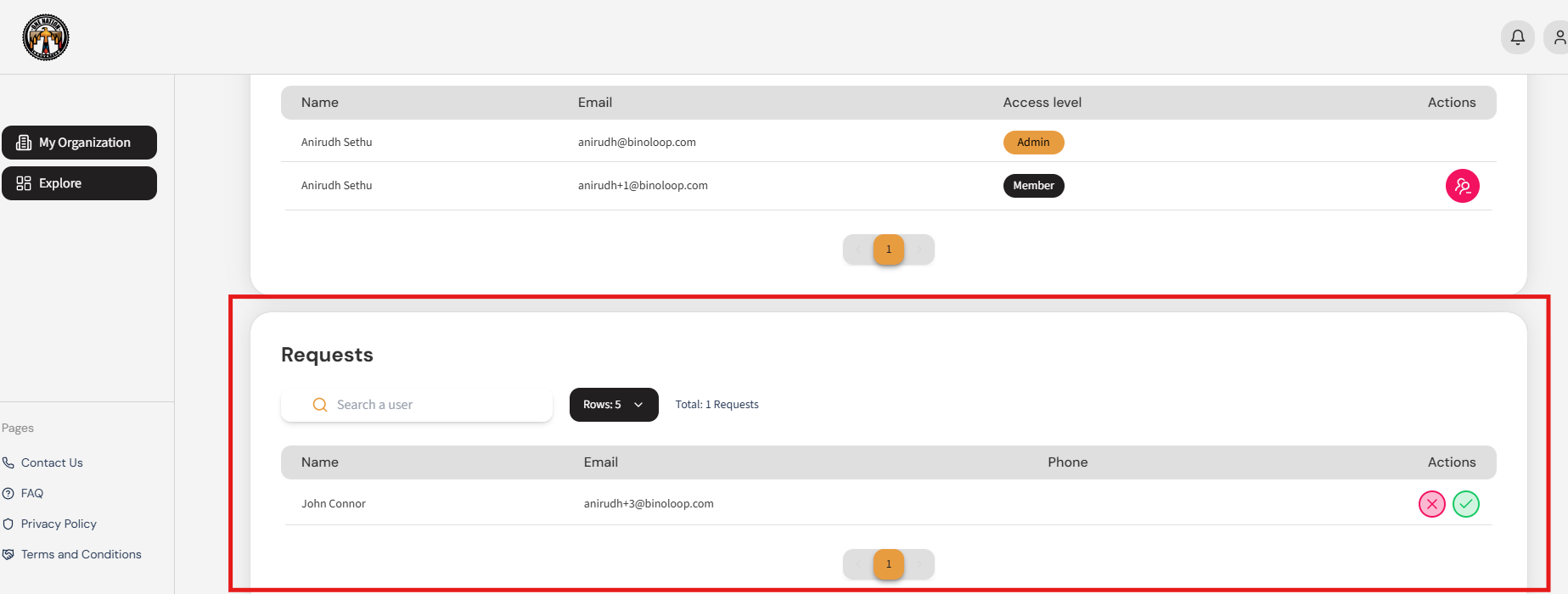 Figure 1: Org Admin reviewing and managing user requests in the Teams Tab. Watch video here
Creating a New Challenge
To create a challenge, you must have an organization and be the admin. Org Admins can create challenges to seek solutions, allowing Oni Marketplace members to submit proposals.
From the Left Navigation Bar, follow these steps:
- Click Explore and select + New Challenge.
- Complete the following steps:
- Step 1: Enter Challenge Name, Points of Contact, Start Date, and End Date, then click Next.
- Step 2: Add Description, Objective, Problem Statement, and Desired Solution, then click Next.
- Step 3: Select related tags from the dropdown.
- Step 4: Upload the Challenge Template Document for participants.
- Click Create Challenge to publish.
Published challenges appear in the Explore Tab, giving the opportunity for ONI marketplace members to participate in them.
After receiving submissions to the posted challenge, the org admin can:
- Review AI-generated scores.
- Use ONI Chat for questions.
- Download assessments.
- Add comments to rubric-generated scores.
Note: Org Admins will not be able to evaluate a challenge. However, they can still add comments to challenge submissions.
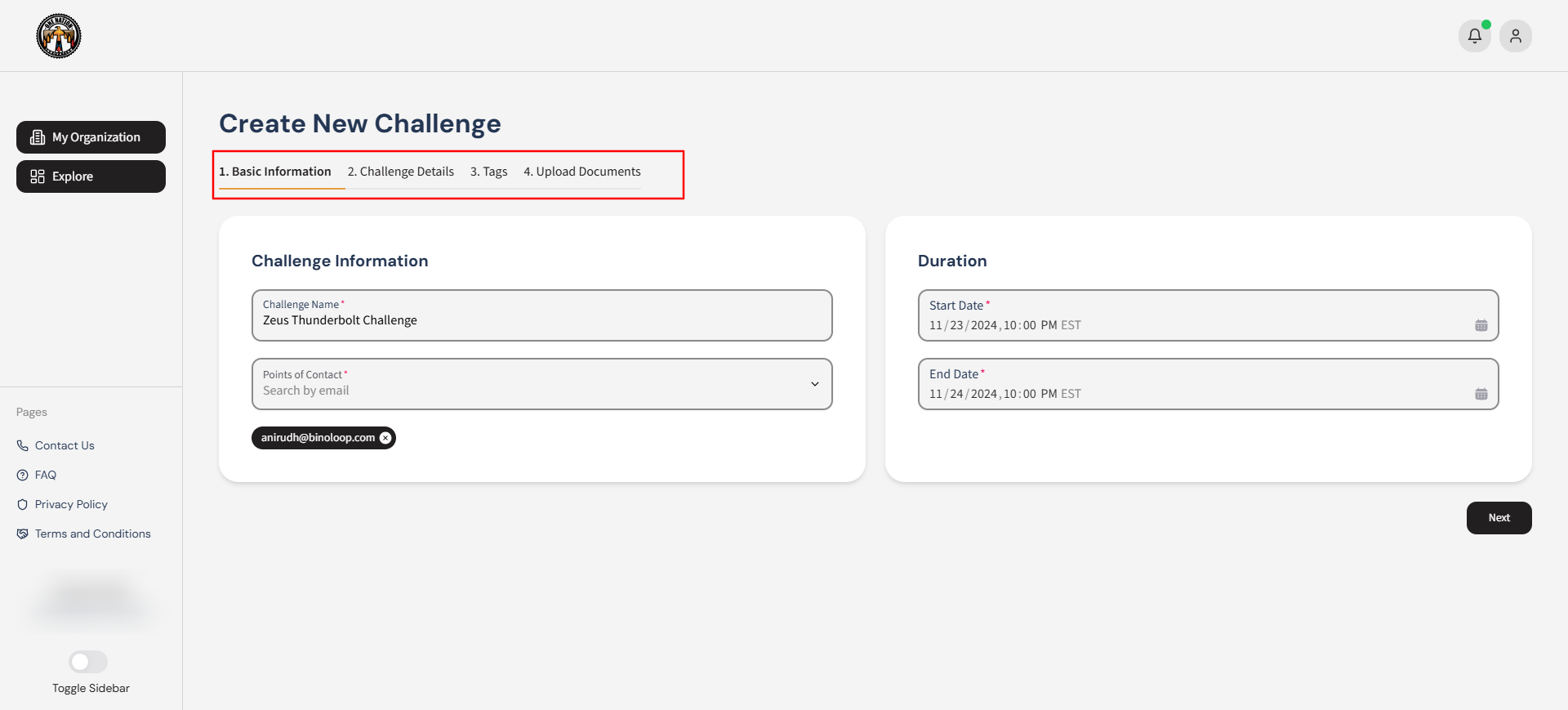 Figure 1: User creating a new organization through the Organization Settings. Watch video here
Inviting Evaluators
The Invite Evaluators feature allows Org Admins to assign evaluators to specific challenges for review. Currently, we only support third party evaluators and one evaluator per challenge. (i.e the evaluator cannot be a member or admin of the organization posting the challenge, they can be associated with another organization.) We will expand the permissions for evaluators in future releases.
From the Top-Right Navigation Menu, follow these steps:
- Select Organization > Organization Settings.
- Go to the Challenges Tab to select an existing challenge or complete creating a new challenge.
- Click +Invite Evaluators and enter the evaluators email addresses.
- Complete by clicking Invite to notify.
Evaluators will receive a notification and can login to the platform and accept the invitation to begin their evaluation.
Note:
- Evaluators must be external to your organization.
- Only one evaluator can be assigned per challenge.
- Org Admin will not be able to evaluate proposals received.
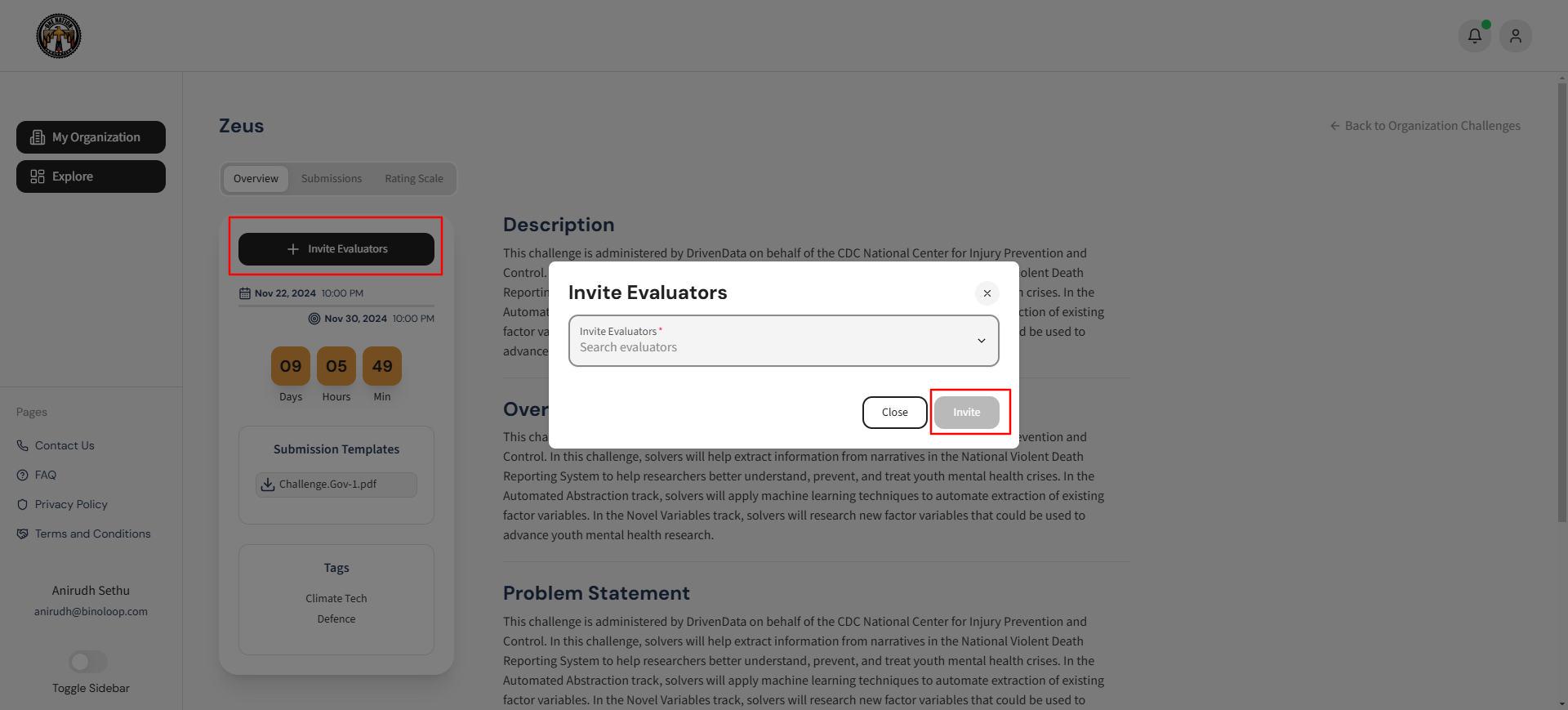 Figure 1: Admin inviting evaluators to a challenge using the Invite Evaluators feature. Watch video here
Updating Organization Details
Once an organization is approved, its details cannot be edited by you. If you need to update your organization's information, please raise a request here, and our team will assist you.