features
Platform Features for Evaluators
Guidelines for evaluators on reviewing submissions, providing feedback, and managing the evaluation process effectively.
Accepting/Rejecting Evaluations
As an evaluator, you will receive an invitation to evaluate. You must accept or decline evaluation requests in order to proceed to the next step.
From the Left Navigation Bar, follow these steps:
- Click the Evaluation Tab to view Pending Evaluations, Active Evaluations, and Completed Evaluations.
- Review the evaluation details, including the challenge name, criteria, and deadlines.
- Click Accept to confirm participation or Reject if you cannot proceed.
Accepted evaluations will appear:
- Under Completed Evaluations if no submissions exist for the challenge.
- Under Active Evaluations if submissions require further action.
Rejected evaluations will notify the assigning admin.
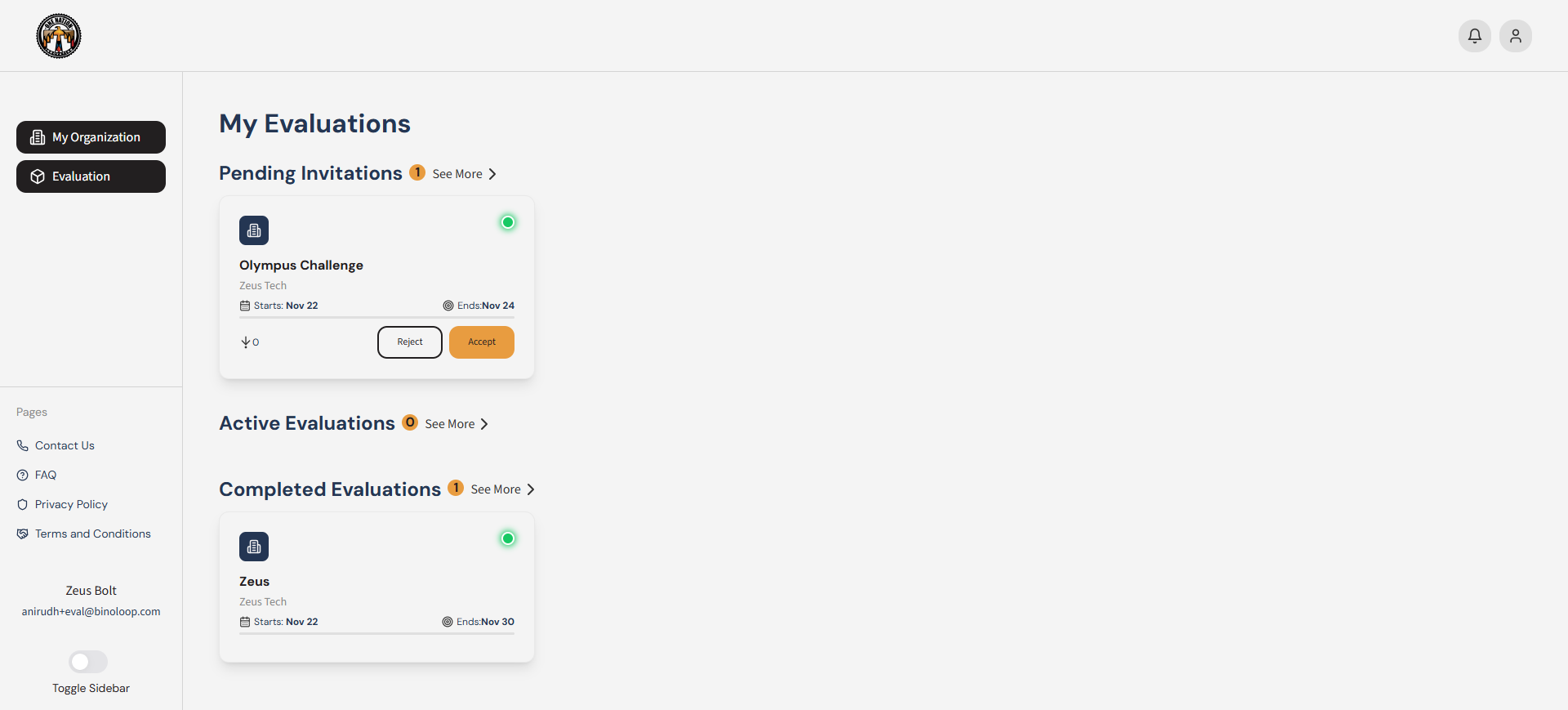 Figure 1: Evaluator managing evaluation requests in the Evaluations Tab. Watch video here
Reviewing Submissions
The marketplace has a built in AI-powered pre-assessment tool which evaluates the submissions and created the baseline scores for evaluators. The pre-assessment feature is meant to provide a data driven evaluation for the evaluators and speed up the review process. Evaluators can then review AI-generated scores and justification and provide their individual feedback and assessment.
From the Left Navigation Bar, follow these steps:
- Click the Evaluation Tab to view your Active Evaluations and select the challenge you want to evaluate.
- Choose the submission you want to review.
- View the AI-generated scores and their score justification.
- Take the following actions:
- Accept the score if you agree with it.
- Reject the score by providing your own score and a comment.
- Click the Comment Icon to view comments from the challenge creator or Org Admin.
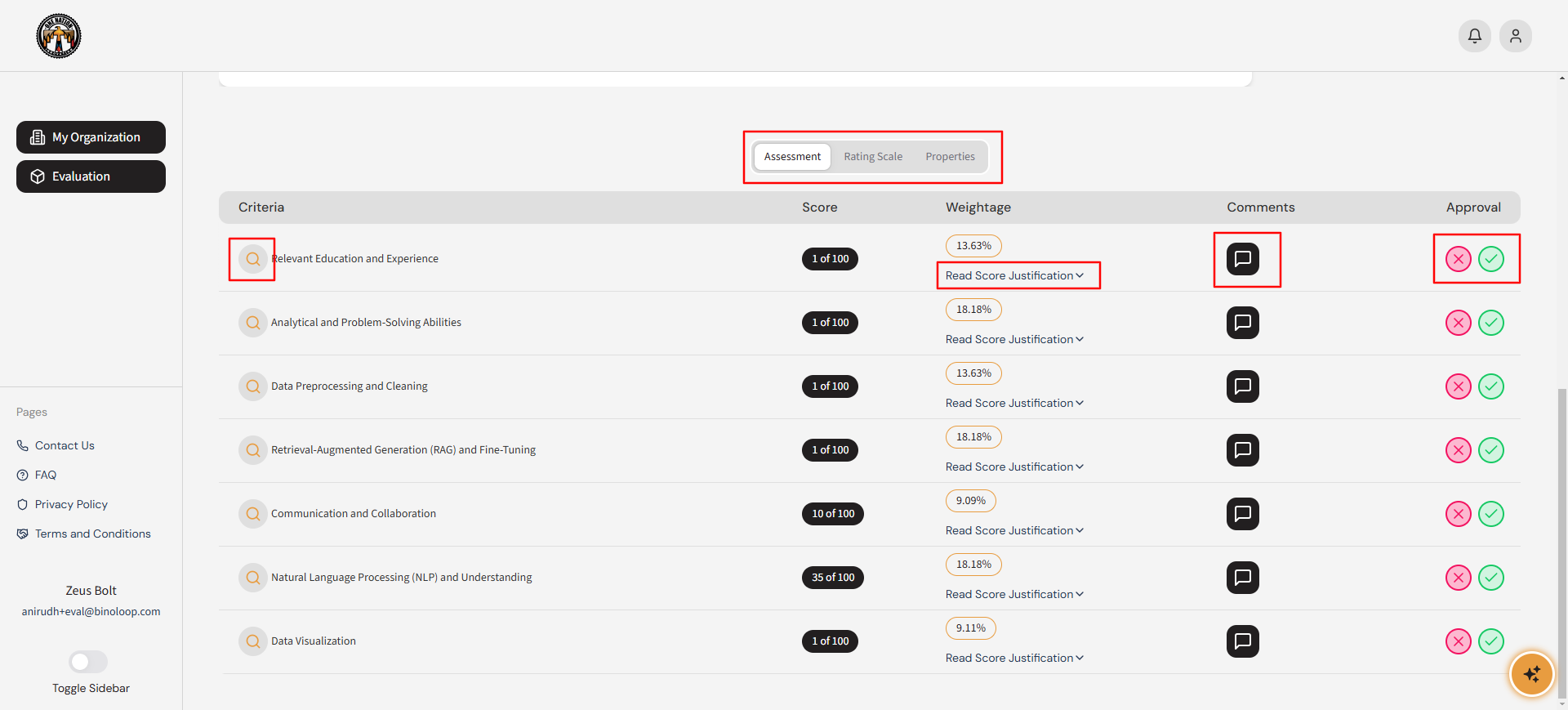 Figure 1: Evaluator reviewing AI-generated scores in the Evaluations Tab. Watch video here
Modifying Scores and Adding Comments
Evaluators can provide feedback on the AI-generated scores and add comments to ensure accurate evaluations.
From the Left Navigation Bar, follow these steps:
- Click the Evaluation Tab and select an Active Evaluation.
- Choose the submission you want to evaluate.
- Navigate to the rubric-generated AI score for each criterion.
- To modify a score:
- Update the score and provide a Rejection Comment.
- Click Submit to finalize.
- Use the Comment Icon to view existing comments from the Org Admin or challenge creator.
Note: Evaluators cannot add new comments by clicking the Comments Icon but can view comments added by the challenge-owning organization member or Super Admin.
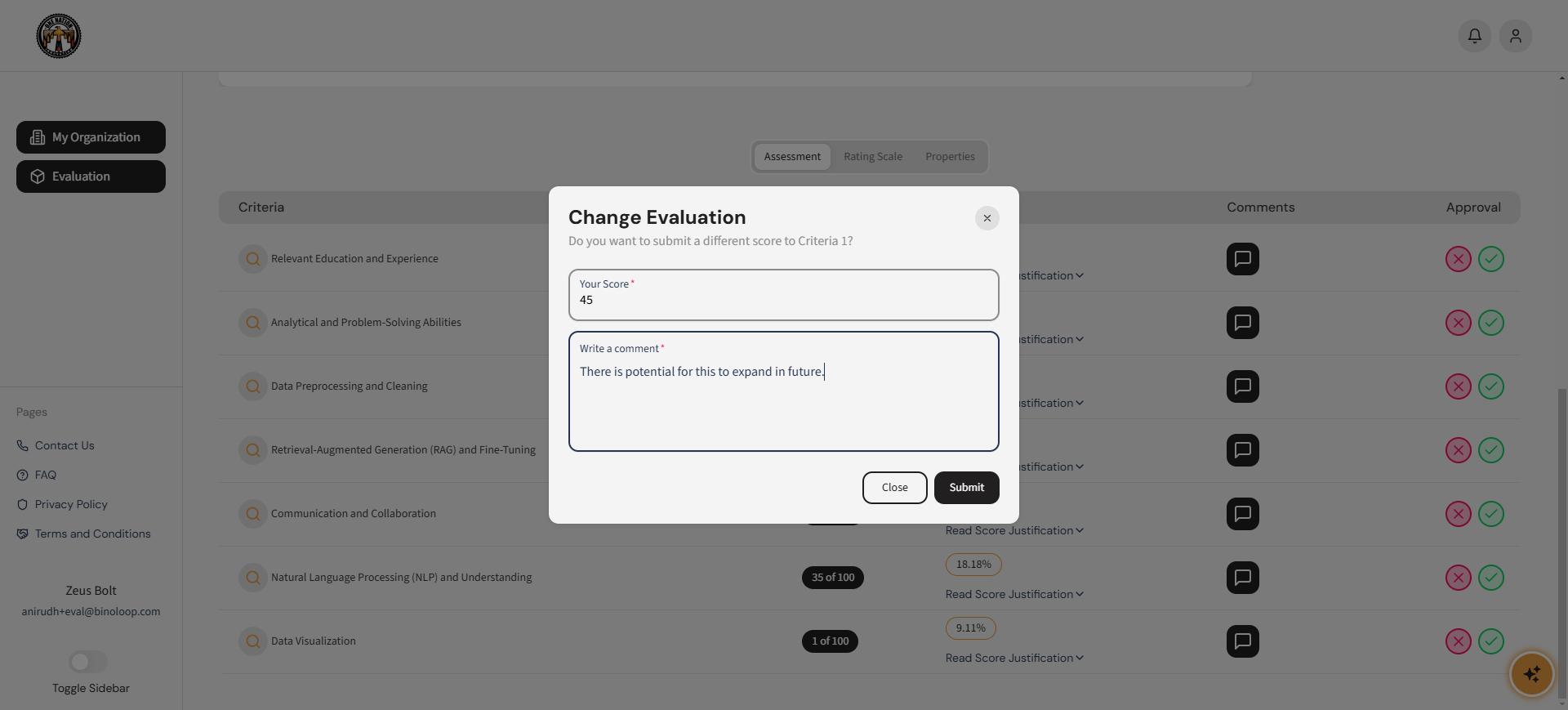 Figure 1: Evaluator modifying AI-generated scores and saving changes. Watch video here
Submitting Final Evaluations
Evaluators complete the evaluation process by reviewing and approving all evaluation criteria. Once all criteria are reviewed, the evaluation is automatically submitted.
From the Left Navigation Bar, follow these steps:
- Click the Evaluation Tab and select an Active Evaluation.
- Review and either approve or reject scores for each evaluation criterion.
- Ensure all criteria are reviewed and updated as needed.
- Once all criteria are approved or modified, the evaluation is automatically submitted, and the challenge owner or Org Admin will be notified.
Note: After all criteria are evaluated, the evaluator cannot access the submission.